How to Print Coloring Pages at Home
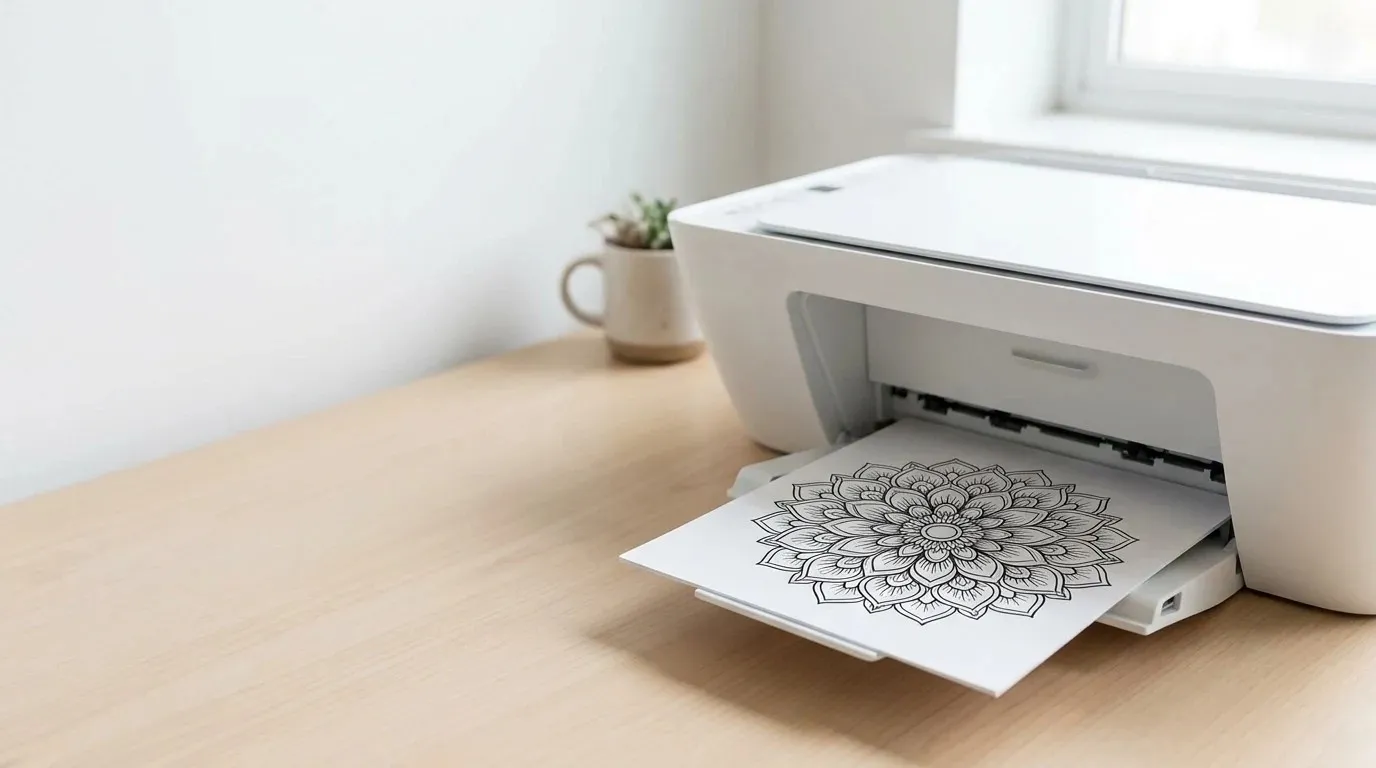
To print coloring pages cleanly at home, configure your print dialog to Black and White or Grayscale to preserve color cartridges, and choose High or Fine print quality. Select Fit to Printable Area or Scale to Fit so outer outlines remain unclipped by mechanical roller margins. When printing on standard Letter (8.5 by 11 inches) or ISO A4 paper, matching paper dimensions and feeding heavier paper ensures crisp, bleed-free linework.
How to Print Coloring Pages at Home tool
On this page
Essential steps for printing crisp coloring pages at home
Printing digital coloring pages at home should be a seamless experience, but default printer configurations often create unexpected problems. Thin lines can emerge looking faint or jagged, outer decorative borders can get lopped off by mechanical feed margins, and wet ink can soak through everyday copy sheets. Understanding the basic print settings of your equipment ensures you get dark, clean linework ready for colored pencils, gel pens, or markers every time you print.
This tutorial is part of our comprehensive collection of coloring guides at AI Print Works. Whether you download sheets from our free printable coloring pages library or convert personal snapshots with our photo to coloring page utility, applying the right driver settings will protect your ink supply and produce artwork you are proud to display.
Free Coloring Tool
Turn a photo into a coloring page
Upload any family, pet, or vacation photo and download a clean, printable coloring sheet in seconds.
Try the free toolOptimizing printer driver settings for clean line art
The default settings programmed into operating systems and printer drivers are engineered for general office text memos. Office presets prioritize printing speed and minimal ink usage over line density and contrast. To achieve rich, continuous outlines on your coloring sheets, adjust three primary driver options before hitting print:
Monochrome versus color ink selection
Most full-color desktop inkjet printers feature separate black and color ink cartridges or liquid ink tanks. When you print a black-and-white PDF under default auto-color settings, many printer drivers construct black lines by blending cyan, magenta, yellow, and black inks together. This process, known as composite black, drains expensive color cartridges rapidly and can produce outlines with faint reddish or bluish fringing along delicate borders.
Always open your printer’s advanced properties dialog and manually select Black and White, Monochrome, or Grayscale. In drivers from Canon, Epson, and HP, look for options named Print in Grayscale or Black Ink Only. Forcing monochrome printing instructs the hardware to draw solely from your high-capacity pigment black tank, resulting in deep, opaque line art while preserving your colored inks for photo projects.
Print quality and resolution settings
Printer software generally presents three quality tiers: Draft (or Economy), Normal (or Standard), and High (or Best).
- Draft mode: The print carriage makes high-speed passes and disperses microscopic droplets far apart to conserve toner or ink. This setting is unsuitable for coloring pages because delicate contours and cross-hatching appear broken, faded, or visibly dithered into gray dots.
- Normal mode: Standard resolution (typically 600 dots per inch) balances speed and ink saturation. It produces clean, continuous outlines suitable for everyday children’s coloring sheets and casual craft sessions.
- High or Fine mode: The carriage slows down, laying down dense, overlapping droplets (up to 1200 or 2400 dpi). This produces solid black lines with razor-sharp definition, ideal for intricate mandalas, botanical drawings, and adult coloring projects where fine details dominate.
Avoid selecting specialized glossy photo paper modes when loading uncoated bond paper or cardstock. Photo presets dispense heavy liquid volumes that can oversaturate standard paper fibers, causing sheets to wrinkle, cockle, or smear as the paper exits the eject rollers.
Page scaling and preventing clipped outer borders
One of the most frequent frustrations colorists face is missing artwork along the outer perimeter of a printed sheet. Detailed frame borders, decorative vines, or outer mandala rings often disappear on the physical page despite appearing complete in the on-screen PDF preview.
The mechanics of mechanical hardware margins
Desktop printers use mechanical rollers, pinch wheels, and transport belts to grab the leading edge of a paper sheet, guide it beneath the printhead carriage, and eject it into the output tray. Because these physical wheels must maintain contact with the sheet during printing, the hardware cannot safely deposit wet ink along the extreme physical edges of the paper without risking roller slippage or internal contamination.
According to technical documentation from manufacturers including HP, Canon, and Epson, standard desktop printers enforce a mandatory non-printable hardware margin. This physical border typically measures between 0.12 inches (3 mm) and 0.25 inches (6.4 mm) along the top and sides, and can extend up to 0.5 inches (12.7 mm) along the trailing bottom margin.
Choosing between Actual Size and Fit to Printable Area
When sending a coloring page PDF to your printer from Adobe Acrobat, Apple Preview, or a web browser print dialog, you will encounter page scaling controls:
- Actual Size (100%): The software maps the digital document to the paper at exact one-to-one scale. If the artwork’s outer borders extend closer to the edge than your printer’s mechanical margin threshold, the driver abruptly clips the artwork.
- Fit to Printable Area (Scale to Fit): The software calculates your printer model’s exact printable boundary limits and scales the entire document down proportionately (typically by two to five percent). All framing elements, borders, and copyright lines are safely pulled inside the printable zone, helping ensure that outer lines are not clipped.
- Shrink Oversized Pages: This setting leaves artwork that already fits within margins untouched at full scale, while scaling down only sheets that exceed printable dimensions.
For virtually all coloring page printouts, selecting Fit to Printable Area or Fit to Page is the safest and most reliable choice. Always verify in the small print preview thumbnail that the entire outline perimeter remains visible before confirming the print job.
Understanding borderless printing and driver extension
Colorists working on full-bleed patterns, landscape scenes, or intricate repeating wallpapers often desire true borderless prints that run completely to the physical edges of the sheet without white margin strips.
How borderless printing functions
Standard printers cannot simply print to the exact edge because microscopic paper feeding variations—even a half-millimeter shift—would leave uneven white slivers along the borders. To overcome this limitation, printer drivers utilize an automated technique called extension or overspray.
When you enable Borderless Printing in your driver software:
- The driver enlarges the digital image slightly beyond the physical sheet dimensions (typically three to five percent over-expansion).
- The printhead travels past the physical paper edge, depositing ink into dedicated sponge-lined absorption gutters built into the printer platen.
- The resulting print achieves an edge-to-edge finish with zero white margins.
Brand-specific borderless configuration
Different printer manufacturers handle borderless commands through specific driver menus:
- Canon printers: In the Print Dialog, select a paper size marked “(borderless)” from Paper Size, then open Page Processing from the pop-up menu to adjust the Borderless Extension slider. Leaving the slider at the recommended second position from the right provides reliable edge coverage, while moving it to the left decreases the amount extending off the paper.
- Epson printers: In the main print preferences window, open the Paper Size dropdown menu. Select the paper dimension that explicitly includes the suffix (Borderless), such as Letter (Borderless) or A4 (Borderless). Epson software allows users to choose between Auto Expand and Retain Size.
- HP printers: Open the Paper/Quality or Layout tab. Select a compatible photo paper type, then check the Borderless or Borderless Printing checkbox.
Limitations and precautions with borderless printing
While borderless printing produces striking results, keep two important limitations in mind. First, printer drivers disable Plain Paper in the Media Type list when borderless printing is enabled. Furthermore, Canon documentation notes that borderless full-page printing is not recommended when Matte Photo Paper or fine art matte media is selected, and warns that borderless printing on thick paper may smudge the front or back surface of the sheet or reduce print quality at the top and bottom edges.
Second, because the expansion algorithm crops off the outer three to five percent of the illustration, avoid using borderless mode on coloring pages that feature critical design elements or text frames very close to the sheet perimeter.
Letter versus A4 dimensions and aspect ratio scaling
Coloring enthusiasts download printable art from global creators, which frequently leads to format mismatches between North American and international paper standards.
Dimensional differences between Letter and A4
North America (the United States, Canada, and parts of Mexico) relies on the ANSI Letter standard, whereas almost all other nations follow the ISO 216 standard:
- US Letter: 8.5 by 11.0 inches (215.9 by 279.4 mm). Aspect ratio is approximately 1 to 1.294.
- ISO 216 A4: 8.27 by 11.69 inches (210.0 by 297.0 mm). Aspect ratio is 1 to 1.414 (the square root of two).
A4 paper is noticeably narrower (by approximately 0.23 inches or 5.9 mm) and longer (by 0.69 inches or 17.6 mm) than US Letter.
Managing cross-format printing without distortion
If you attempt to print a Letter-formatted coloring sheet on an A4 printer without scaling adjustments, the printer will either clip the wider left and right borders or prompt an annoying paper mismatch error on your printer’s digital control panel.
To print smoothly across formats:
- Never select Fill Entire Page or Stretch to Fit. Stretching forces the digital illustration to conform to the new aspect ratio independently along horizontal and vertical axes, warping round mandala circles into ovals and distorting animal faces.
- Select Fit to Printable Area while checking the box for Maintain Aspect Ratio (or Proportional Scaling). When sending a Letter PDF to A4 paper, your software will shrink the document slightly to accommodate the narrower A4 width, leaving slightly wider white margins at the top and bottom.
- When sending an A4 PDF to Letter paper, the software will scale the height down to fit the shorter Letter sheet, creating slightly wider margins along the sides.
All coloring files provided by AI Print Works are formatted with generous boundary margins that allow seamless proportional scaling between Letter and A4 sheets without visual clipping.
Selecting and feeding paper stocks for home coloring
The paper you load into your printer tray fundamentally determines how your coloring instruments interact with the printed sheet. While thin paper works for fast children’s activities, adult colorists and marker artists require heavier, sturdier substrates.
Paper weight standards for coloring
Standard office copy paper weighs twenty pounds bond (approximately 75 gsm). It is lightweight and economical, making it ideal for young children using wax crayons. However, twenty-pound paper easily creases under pencil blending pressure and bleeds through instantly when wet markers or gel pens are applied.
For general coloring with colored pencils, fine-tip felt pens, and gel pens, upgrade to twenty-four-pound or twenty-eight-pound smooth multipurpose paper (90 to 105 gsm). This weight provides noticeable opacity and a tighter surface weave that resists feathering.
For alcohol-based art markers, watercolor pencils, and liquid blending fluid, choose sixty-five-pound cover cardstock (approximately 176 gsm). Cardstock offers the physical stiffness and cellulose density required to hold heavy pigment saturation without buckling. Consult our dedicated guide to the best paper for coloring pages for detailed paper weight charts and media comparisons.
Feeding heavy cardstock through your printer
Home printers feed paper through either a bottom cassette drawer or an open rear feed tray. Bottom cassette trays force sheets to travel through an internal U-shaped roller path, curling the paper 180 degrees before it reaches the printhead.
When printing on sixty-five-pound cardstock or heavier sheets, feed the paper through your printer’s rear gravity-feed slot or manual bypass tray if available. A rear feed path introduces the sheet at a gentle angle with minimal bending, dramatically reducing the risk of paper feed jams and preventing permanent paper curl. Always fan your stack of cardstock prior to loading to dispel static adhesion between sheets.
Inkjet versus laser printers for coloring projects
Both inkjet and laser printing technologies produce excellent line art, but they interact differently with coloring tools.
Inkjet printers spray microscopic liquid ink droplets onto paper fibers. Most consumer inkjets utilize water-based dye inks for color and pigment-based ink for black. While pigment black ink offers decent water resistance once fully dry, prolonged scrubbing with wet watercolor brushes, water-based markers, or alcohol blenders can occasionally soften the ink, creating muddy gray smudges across light colors. Allow inkjet printouts to dry for at least ten to fifteen minutes before beginning heavy coloring.
Laser printers, in contrast, use electrophotographic drums to transfer dry plastic toner powder onto the page, fusing it under intense heated rollers. The resulting black lines are composed of melted polymer that is completely waterproof, solvent-proof, and impervious to water or alcohol markers. If you enjoy watercolor washes or alcohol blending markers, laser prints provide an exceptionally stable, smudge-proof outline.
By matching your print quality settings, paper scaling, and paper weight to your specific artistic medium, you will enjoy sharp, durable coloring sheets every time you send a file to your printer.
Frequently asked questions
Why are the borders of my coloring pages cutting off when printed?
Most home inkjet and laser printers have physical mechanical limitations that prevent printing all the way to the edge of standard copy paper. Feed rollers require roughly 0.12 to 0.25 inches of unprinted margin to hold the page securely. If your printing software is set to Actual Size or 100 Percent, artwork extending near the perimeter gets clipped. Selecting Fit to Printable Area scales the entire image down slightly to fit within these physical borders.
Should I select color or grayscale when printing coloring pages?
Unless the coloring page contains intentional colored background elements or pre-shaded reference guides, always select Black and White, Monochrome, or Grayscale in your printer preferences dialog. This instructs the printer to use dedicated pigment black ink rather than blending expensive cyan, magenta, and yellow inks to produce composite dark gray. Using monochrome mode saves significant ink costs while producing sharper, deeper line contrast.
How do I turn on borderless printing for full-page designs?
To print borderless, open your printer driver dialog, select a paper size that supports borderless printing, and choose a compatible photo paper media type. Standard plain copy paper is typically grayed out or locked out in borderless modes because porous sheets absorb overspray ink, and borderless printing on matte or thick paper is often not recommended as it can smudge the paper surface.
How do I print a Letter-sized PDF on international A4 paper?
North American Letter sheets are wider and shorter (8.5 by 11.0 inches) than international A4 sheets (8.27 by 11.69 inches). When sending a Letter-formatted coloring sheet to an A4 printer, select Fit to Page or Fit to Printable Area in your PDF reader. The software will shrink the width by roughly three percent to fit the narrower A4 sheet while maintaining proper aspect ratio without distortion.
What print quality setting gives the sharpest line art?
Choose Normal or High/Best quality in your print dialog. Draft or economy mode prints quickly but reduces ink density, leading to broken, faded, or jagged outlines that can frustrate colorists. High quality lays down a solid, opaque black line that provides a clean barrier against colored pencils, markers, and gel pens. Avoid glossy photo settings unless you are feeding coated specialty media.
Is an inkjet or laser printer better for printable coloring pages?
Both printer types have distinct advantages. Laser printers use toner powder melted onto the paper surface via heat, creating completely waterproof, smudge-proof lines that will not smear when contacted by wet markers, blenders, or watercolors. Inkjet printers are more accessible and handle heavier cardstock varieties with greater flexibility, though water-based dye inks may bleed if subjected to heavy wet media.